Make your photo book, step by step.
Every area and button of the photo book editor, with annotated screenshots, then the five tasks you will do most: add photos, change a layout, add text, reorder pages, preview and order.
For stores
Sell photo books with Bindl? Link this page from your product pages, your order emails or your FAQ: it answers the questions customers ask while making their book. It exists in English, French, Spanish, German, Italian and Portuguese.
The editor works best on a computer or a tablet. On a phone, use From my phone to send photos to a book open on your computer.
Screenshots show the editor in English with the default look. In a store, the colours, formats, options and prices are the store's own, and some tabs may be hidden.
1. Start a book
A new book opens on this screen. Fill it in from top to bottom, then click Create the book.
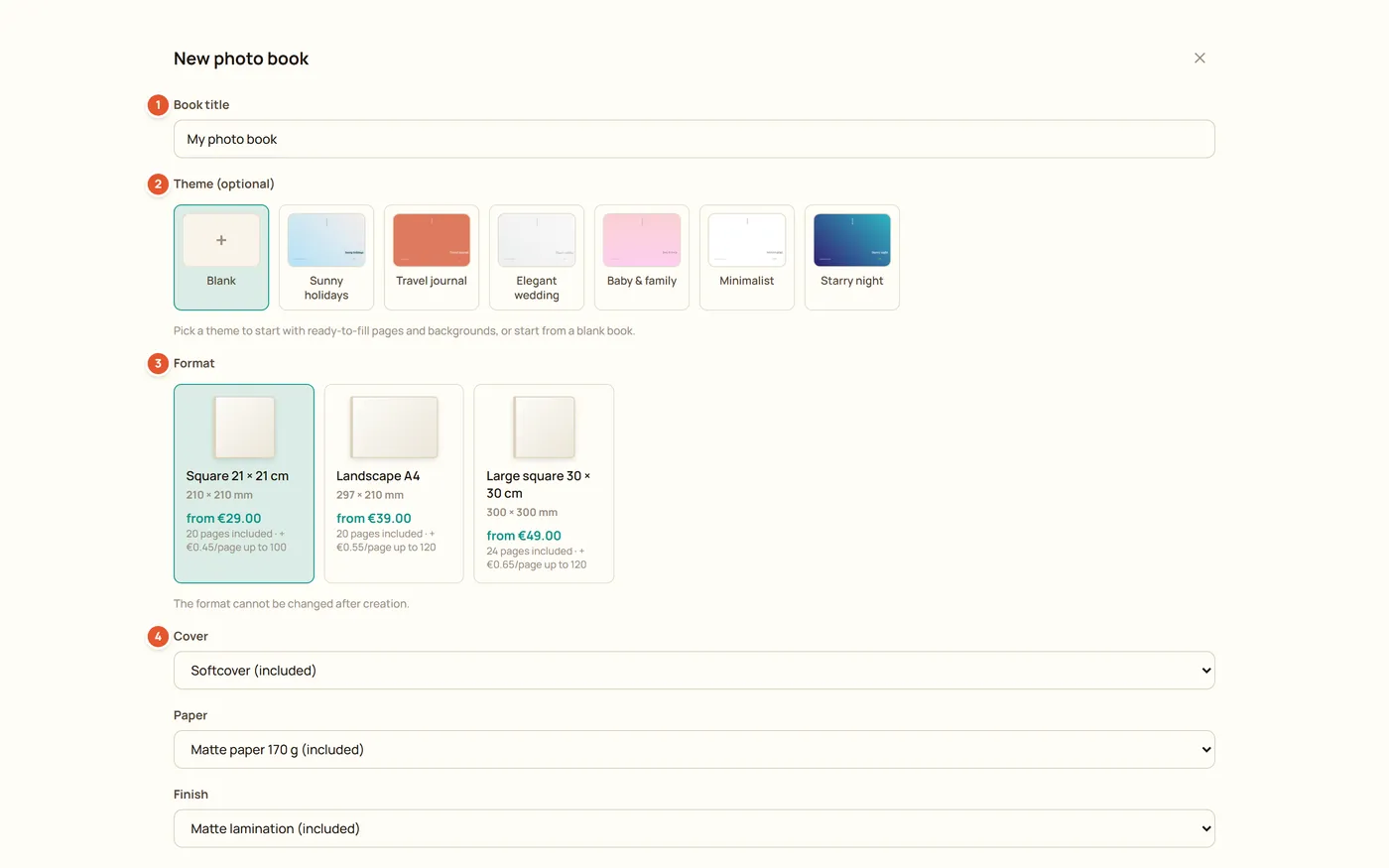
- Book title
The name of the book. You can change it at any time from the top bar.
- Theme (optional)
A ready-made style: backgrounds, fonts and page layouts. Blank starts from empty pages. Everything stays editable afterwards.
- Format
The size and shape of the book, with its starting price. The format cannot be changed after creation, so choose it first.
- Cover
The cover type, followed by the paper and the finish. These can be changed later with the Material button.
2. The screen at a glance
Once the book is created, the editor shows six areas.
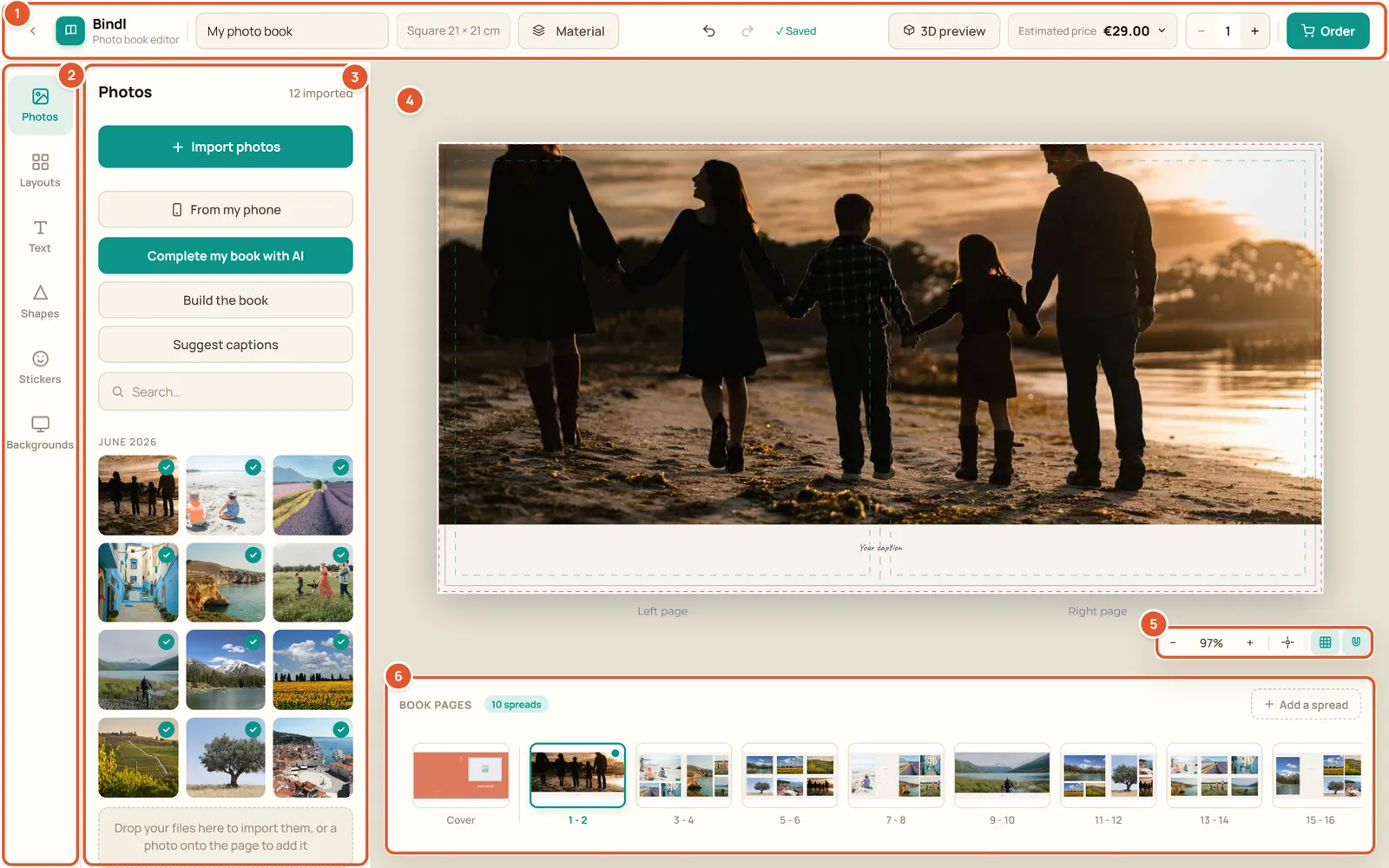
- Top bar
Title, format, material, undo and redo, save status, 3D preview, price and Order.
- Sidebar tabs
Photos, Layouts, Text, Shapes, Stickers, Backgrounds and Links. Click a tab to show its panel.
- Side panel
The content of the open tab: your photos, the layouts, the text styles and so on.
- Page
The spread you are working on, left and right page. Click an item to select it and show its toolbar.
- Zoom bar
Zoom, recentre, print guides and snapping.
- Page strip
Every spread of the book, from the cover to the last page. Click a thumbnail to open that spread.
3. Top bar
The top bar holds what concerns the whole book.

- Back
Leaves the editor. The book is saved and waits for you.
- Title
Click it to rename the book.
- Format
Reminds you of the format chosen at creation, for example Square 21 x 21 cm.
- Material
Changes the cover, the paper, the finish and the options offered by the store. The price follows your choices.
- Undo and Redo
Cancel or restore your last changes. Shortcuts: Ctrl+Z and Ctrl+Y.
- Save status
The book saves itself as you work. Saved means everything is stored. Not saved - retrying means the connection dropped: keep the page open, the editor tries again.
- 3D preview
Shows the book in 3D, as it will look once printed.
- Estimated price
The price with the current pages and options. Click it to see the details: format, extra pages, paper and options.
- Quantity
The number of copies to order, from 1 to 99.
- Order
Checks the book, then takes you to payment.
4. Photos
The Photos tab holds every photo of the book.
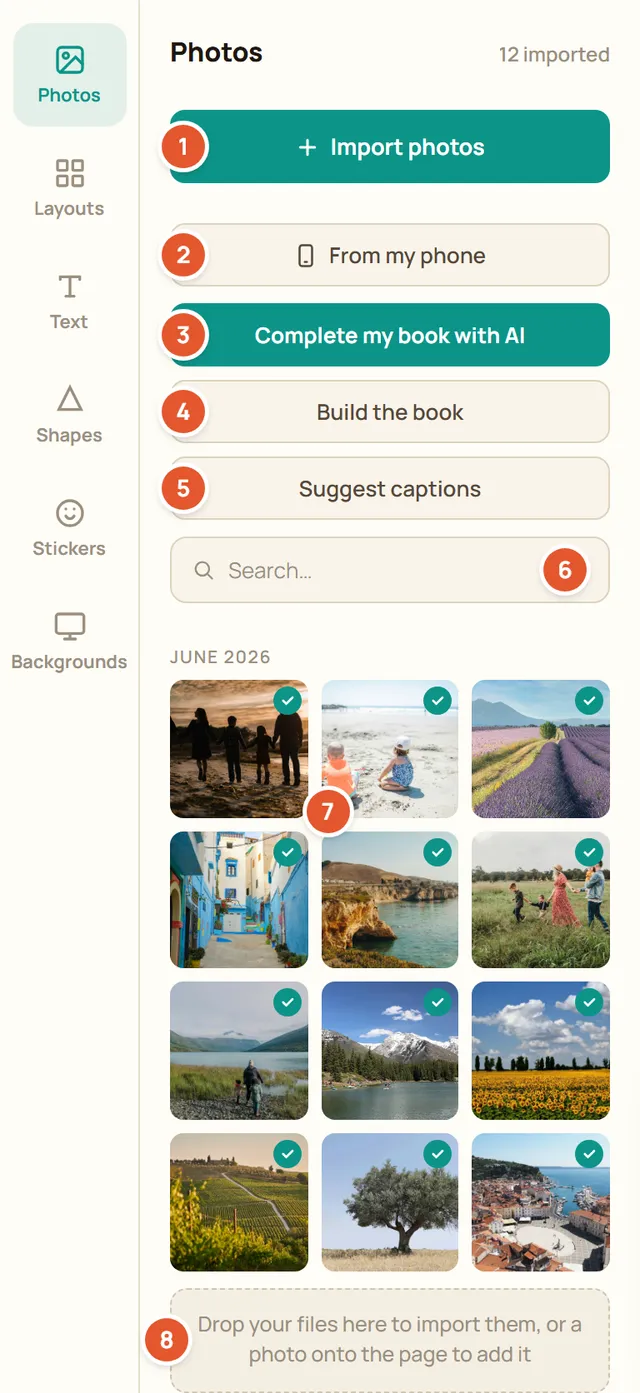
- Import photos
Adds photos from this computer. A PDF can be imported too: each page becomes a picture.
- From my phone
Shows a QR code. Scan it with your phone camera to send photos straight from its gallery, while you keep working.
- Create my book with AI
Sorts your photos, sets aside duplicates and missed shots, lays out the pages and writes captions. Once the book has pages, the button reads Complete my book with AI. Shown when the store offers it.
- Build the book
Orders the photos by date, gives the best ones a large slot, adds the pages needed and places the captions. Undo cancels it in one click.
- Suggest captions
Suggests a title and captions from the photos of the book. Nothing is written in the book without your approval. Shown when the store offers it.
- Search
Filters the photos by file name.
- A photo
Drag it onto the page, or onto a frame to fill it. A green check marks the photos already used in the book.
- Drop zone
Drop files from your computer here to import them.
- After an import, the editor may suggest a review: near identical, blurry, very dark or overexposed photos are listed so you can remove them. Everything is kept unless you untick it.
- A photo too small for its frame is flagged as low resolution before you order.
5. Layouts
A layout sets where the photo frames and text boxes sit on a page.
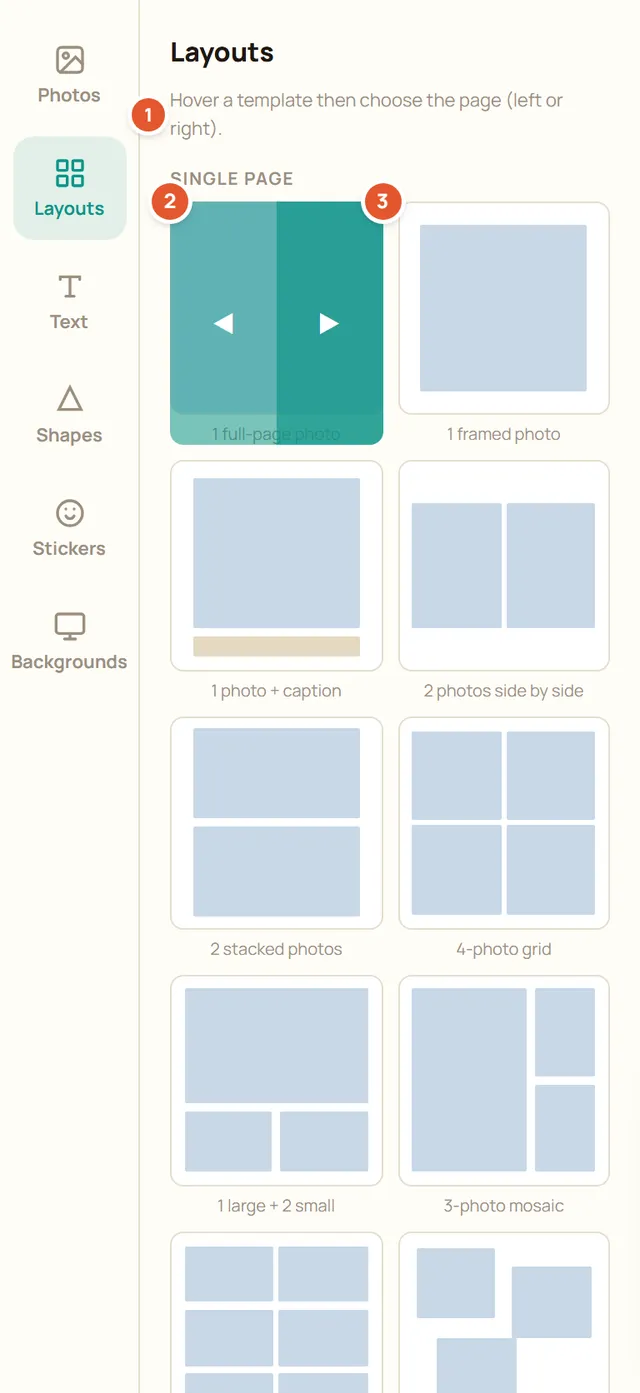
- Hint
Reminds you how to apply a layout: hover a template, then choose the page.
- Left page
Applies the template to the left page of the open spread.
- Right page
Applies the template to the right page.
- Further down, the Spread section holds templates that cover both pages at once.
- The template adds empty frames and sample captions. Photos already placed stay where they are: drag them into the new frames. On the cover, the two buttons are Back cover and Front cover.
6. Text
The Text tab adds titles, captions and paragraphs.
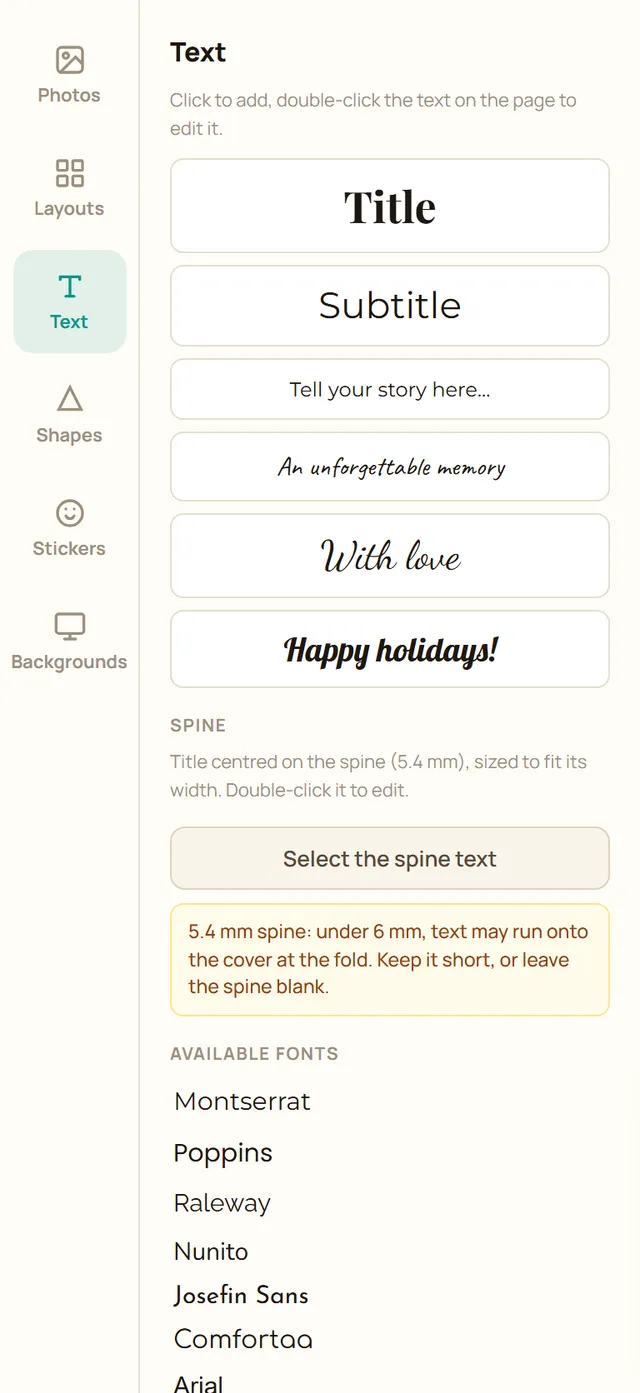
- Click a style (Title, Subtitle, paragraph, caption, calligraphy, fancy) to add it to the page, then double-click the text on the page to type.
- Available fonts lists the fonts of the store. Click one to add a text in that font.
- Spine adds a title centred on the spine of the book. Under 6 mm of spine, keep it short or leave the spine blank: the text may run onto the cover at the fold.
7. Backgrounds, shapes, stickers and links
The other tabs decorate the pages.
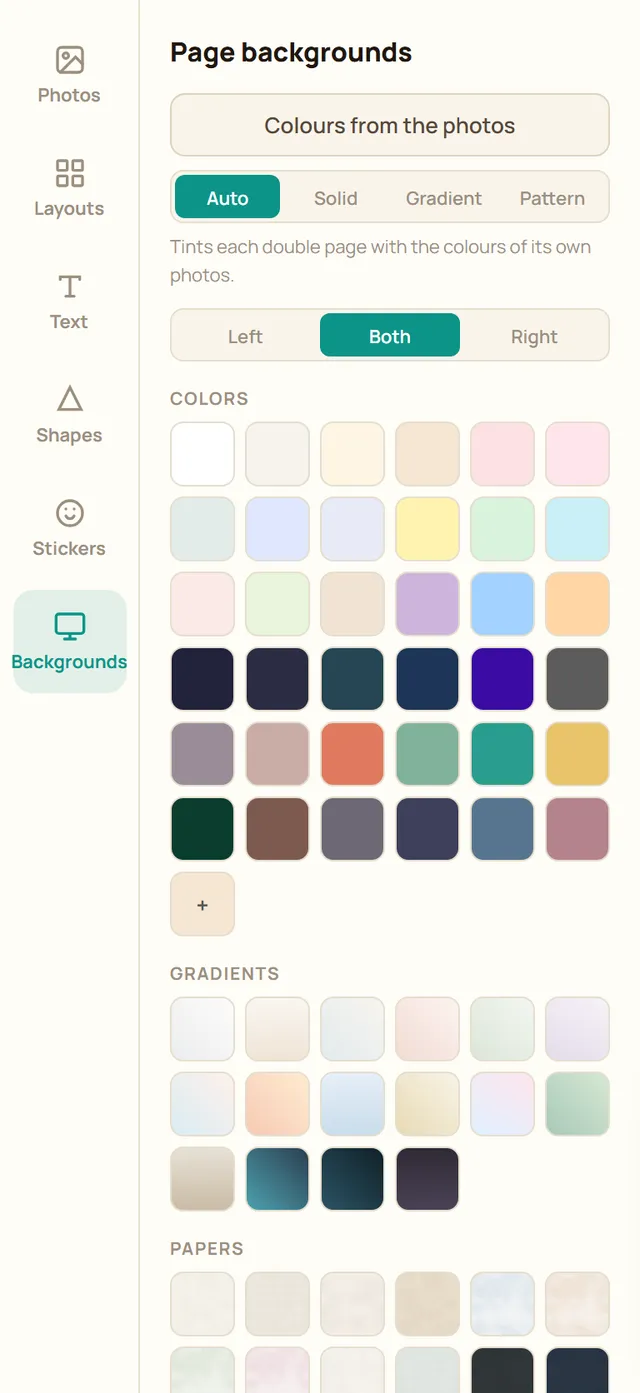
- Backgrounds: choose Left, Both or Right, then a colour, a gradient or a paper. Colours from the photos tints each spread with the colours of its own photos. Apply to all pages repeats the choice across the book.
- Shapes: click a shape to add it to the page, then change its colour and border from its toolbar.
- Stickers: illustrations and emojis, with a search field.
- Links: adds a QR code that opens a video, a web link or the 3D version of the book. Test it with your phone before ordering. Shown when the store offers it.
8. Photo toolbar
Click a photo on the page to show this toolbar above it.
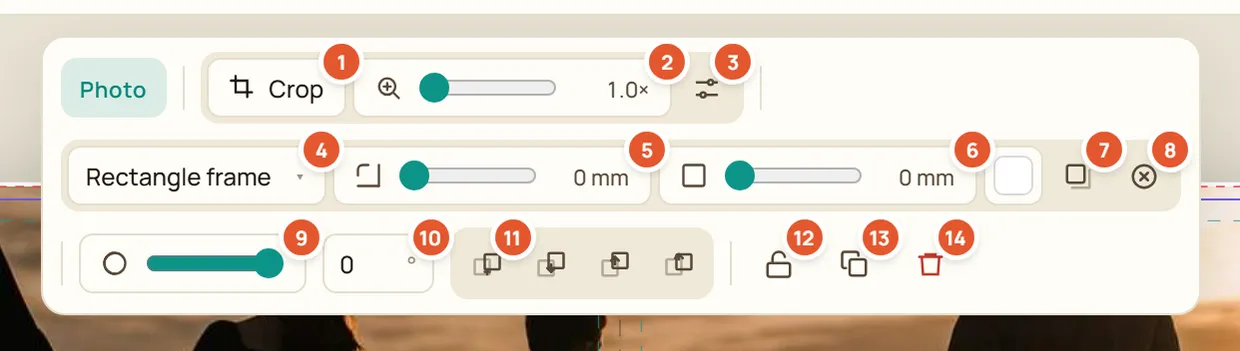
- Crop
Moves the photo inside its frame. Double-clicking the photo does the same.
- Zoom in the frame
Enlarges the photo inside its frame (1.0x means no zoom).
- Enhance
Applies a light brightness and colour correction. Click again to go back to the original. Your file is never changed.
- Frame shape
Rectangle, circle and other shapes for the frame.
- Rounded corners
Rounds the corners of the frame, in millimetres.
- Border
Border width in millimetres, and its colour from the swatch next to it.
- Drop shadow
Adds a soft shadow under the photo.
- Clear the frame
Takes the photo out and keeps the empty frame, ready for another photo.
- Opacity
Makes the photo more or less transparent.
- Rotation
Turns the frame, in degrees.
- Order
Sends the item to the back, one step backward, one step forward or to the front.
- Lock
Stops the item from moving by accident. Click again to unlock.
- Duplicate
Makes a copy of the item (Ctrl+D).
- Delete
Removes the item from the page (Delete key).
9. Text toolbar
Click a text on the page to show this toolbar.
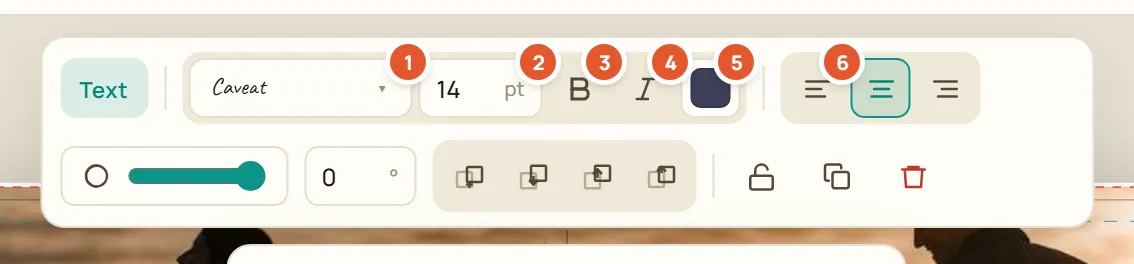
- Font
Opens the list of fonts, each shown in its own style.
- Size
Text size in points.
- Bold
Sets the text in bold.
- Italic
Sets the text in italics.
- Colour
Text colour.
- Alignment
Aligns the text left, centre or right in its box.
- The second row works like the photo toolbar: opacity, rotation, order, lock, duplicate and delete.
10. Pages and zoom
Below the page, the zoom bar and the page strip.
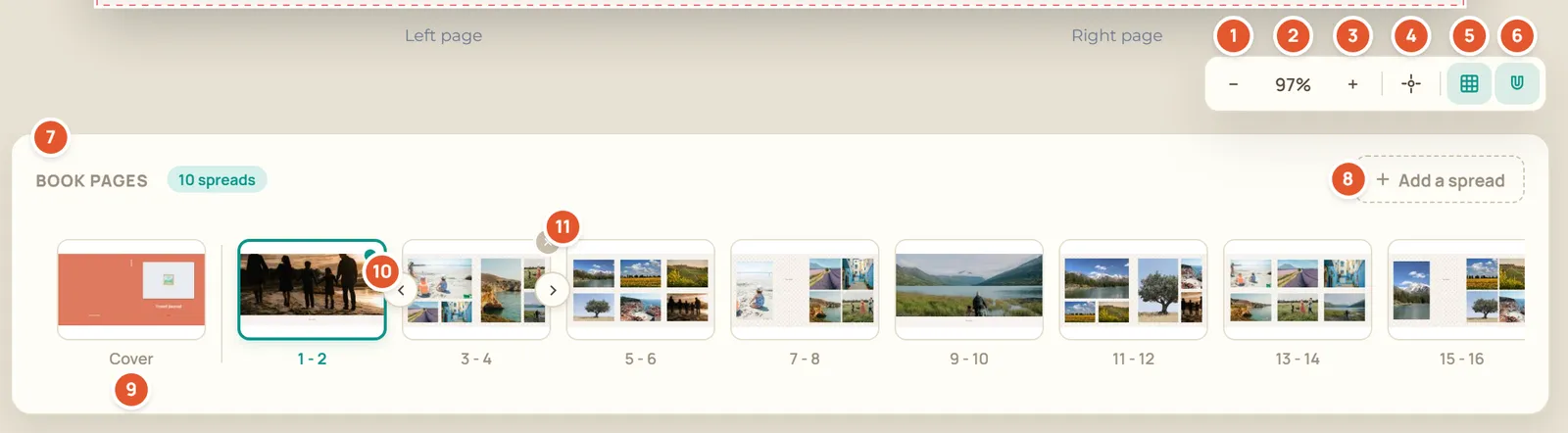
- Zoom out
Shows the spread smaller.
- Zoom level
The current zoom. Click it to fit the spread to the screen.
- Zoom in
Shows the spread larger. Ctrl and the mouse wheel zoom too, the wheel alone moves around.
- Recentre
Puts the spread back in the middle of the screen.
- Print guides
Shows the bleed and the safe area: keep text and faces inside the safe area, as the edges are trimmed.
- Snap
Items snap to edges, centres, margins and to each other. Hold Alt while moving to turn it off.
- Book pages
The number of spreads in the book.
- Add a spread
Adds pages at the end of the book: two, or more when the binding needs pages in groups.
- Cover
The first thumbnail is the cover. Click any thumbnail to open that spread.
- Move
Hover a thumbnail to show them, then move the spread earlier or later in the book.
- Delete the spread
Hover a thumbnail to show it. The editor asks before deleting.
11. 3D preview
The 3D preview shows the printed book, cover and pages. Drag to rotate it, use the keyboard arrows to turn the pages.
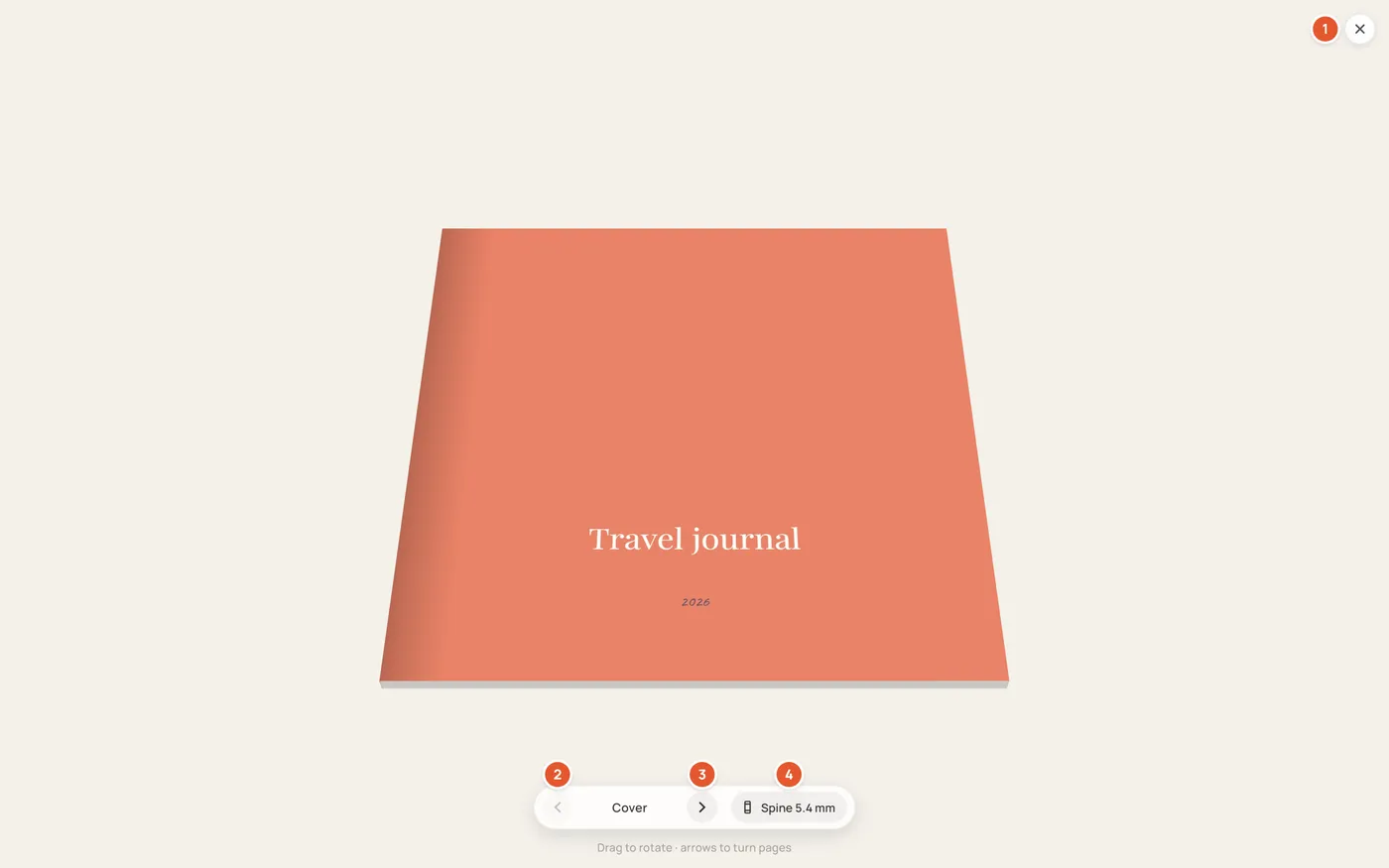
- Close
Returns to the editor.
- Previous page
Turns back one page.
- Next page
Turns one page forward.
- Spine
Turns the book to show its spine, with its width in millimetres.
12. Check and order
Order runs a final check of the book before payment.
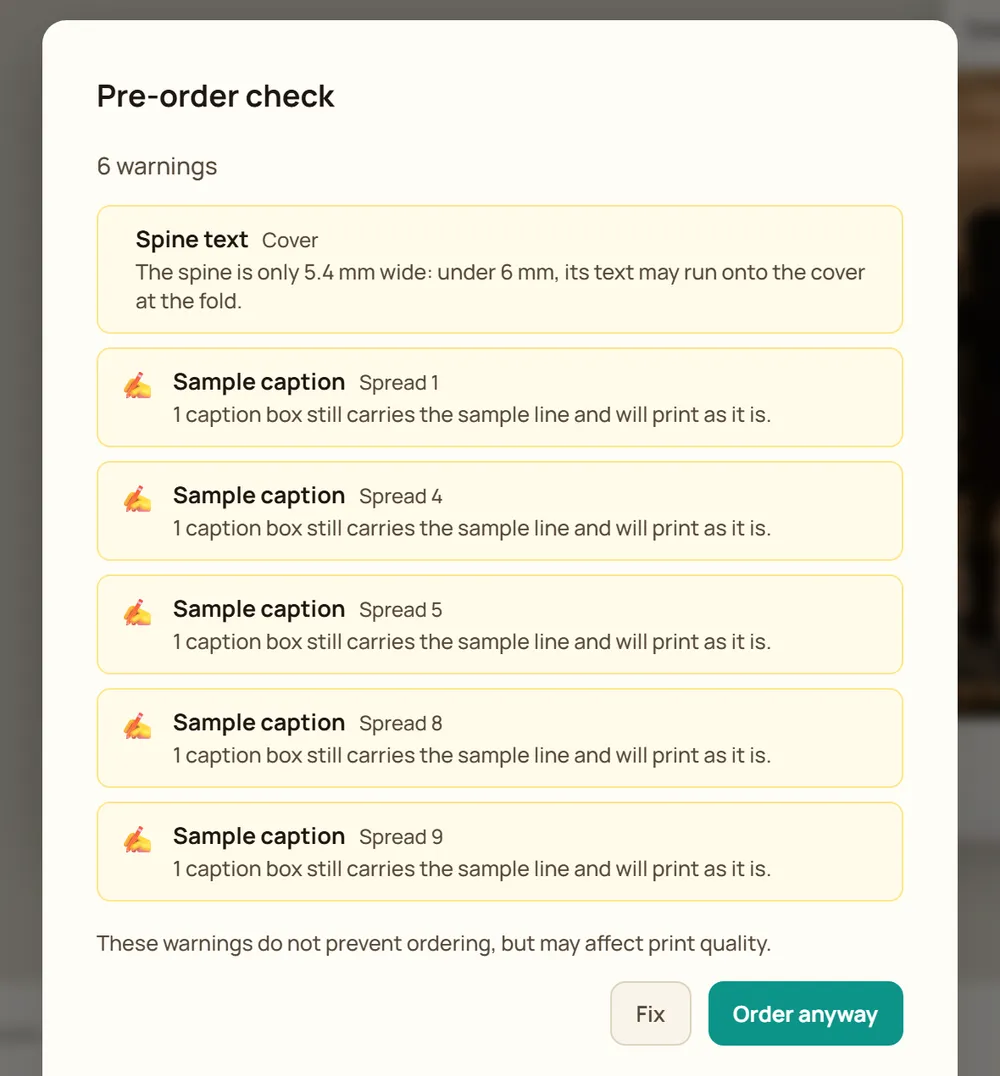
- Blocking issues, such as a missing photo or a wrong page count, must be fixed before ordering.
- Warnings, such as a low resolution photo, a sample caption left as is or a long spine text, do not prevent ordering but may affect the print.
- Fix closes the check so you can correct the book. Order anyway goes on to payment.
- Set the number of copies with the quantity next to the price before you click Order.
Common tasks
Add photos
- Open the Photos tab.
- Click Import photos, or drop files on the panel. From a phone, click From my phone and scan the QR code.
- Drag a photo onto a frame of the page, or click Build the book to lay out every photo at once.
- Click the photo, then Crop or double-click it to choose the part that shows.
Change a layout
- Open the spread in the page strip.
- Open the Layouts tab.
- Hover a template, then click the left or right page button. For both pages at once, pick a template in the Spread section further down.
- Drag your photos into the new empty frames and replace the sample captions. Undo (Ctrl+Z) brings the previous layout back.
Add text
- Open the Text tab and click a style: it lands on the open page.
- Double-click the text on the page and type.
- Use the text toolbar for the font, size, colour and alignment.
- Drag the box to place it. Keep it inside the safe area shown by the print guides.
Reorder pages
- In the page strip, hover the spread to move.
- Click the left or right arrow on its thumbnail to move it one place, as many times as needed.
- To add pages, click Add a spread. To remove a spread, click the cross on its thumbnail.
Preview and order
- Click 3D preview and turn the pages to check the whole book.
- Set the number of copies next to the price.
- Click Order and read the check: fix the blocking issues, then decide on the warnings.
- Click Order anyway, or Order when nothing is flagged, and pay in the store's checkout.
Keyboard shortcuts
| Keys | Action |
|---|---|
| Ctrl+Z | Undo |
| Ctrl+Y or Ctrl+Shift+Z | Redo |
| Ctrl+C, Ctrl+X, Ctrl+V | Copy, cut and paste the selected items |
| Ctrl+D | Duplicate the selection |
| Delete or Backspace | Delete the selection |
| Arrows | Move the selection by 1 mm |
| Shift+Arrows | Move the selection by 10 mm |
| Shift+click or Ctrl+click | Select several items |
| Alt while dragging | Turn snapping off |
| Ctrl+mouse wheel | Zoom |
| Double-click a photo | Crop it |
| Double-click an empty frame | Open the Photos tab |
| Escape | Cancel a move in progress, leave the crop, or deselect |
On a Mac, use Cmd instead of Ctrl.
Still stuck?
For a question about an order, the delivery or the price, contact the store you are ordering from. Store owners can find more answers on the help page.
Help and support